Values and Rules
Every Remote Config returns a value on each request. That value is determined by an ordered set of rules in Setup → Rules, with a Default Value as the final fallback.
Four value types
Each Remote Config has exactly one value type. It determines the rule editor's style and the data shape the SDK receives.
| Type | Best for | Editor |
|---|---|---|
| Boolean | Feature toggles, kill switches, show/hide toggles | True / False toggle |
| Number | Numeric thresholds, durations, retry counts, weights | Number input |
| String | Copy, URLs, single enum values | Single-line text input |
| JSON | Structured payloads (themes, level configs, ad placements, and anything else that needs multiple fields delivered together) | JSON editor with type validation |
How to choose
A simple decision path:
- The answer is "yes / no" → Boolean
- The answer is a single number → Number (don't embed the unit in the value; use the field name to indicate the unit)
- The answer is a string or URL → String (don't squeeze JSON in; if you need multiple fields, upgrade to JSON)
- The structure is more complex → JSON (version related fields together)
⚠️ Changing the type is a destructive operation. Changing the Value Type after a config is live rebuilds the rule editor — any old values that cannot be parsed as the new type will be cleared. Think through the shape before you create the config. If you do need to change the shape, the recommended approach is to create a new config and migrate callers rather than editing in place.
Notes on each type
Boolean — best for the simplest "is this feature on for this user" question. If you're already thinking "yes, but with these parameters," you probably want JSON (one field as the switch, other fields as parameters) so the switch and parameters can change together.
Number — accepts integers and decimals. For numbers with units ("30 seconds" vs. "30 minutes"), document the unit in the config name or description; ABC does not store units.
String — if the text contains commas or curly braces and is essentially a list or map, switch to JSON.
JSON — the top of the editor provides Format JSON and Compress JSON tools. The value is validated as legal JSON before saving. Clients should treat the JSON shape as a contract: add new fields with defaults, avoid renaming existing fields, and handle breaking changes by versioning the config name (e.g. my_config_v2).
Rule evaluation
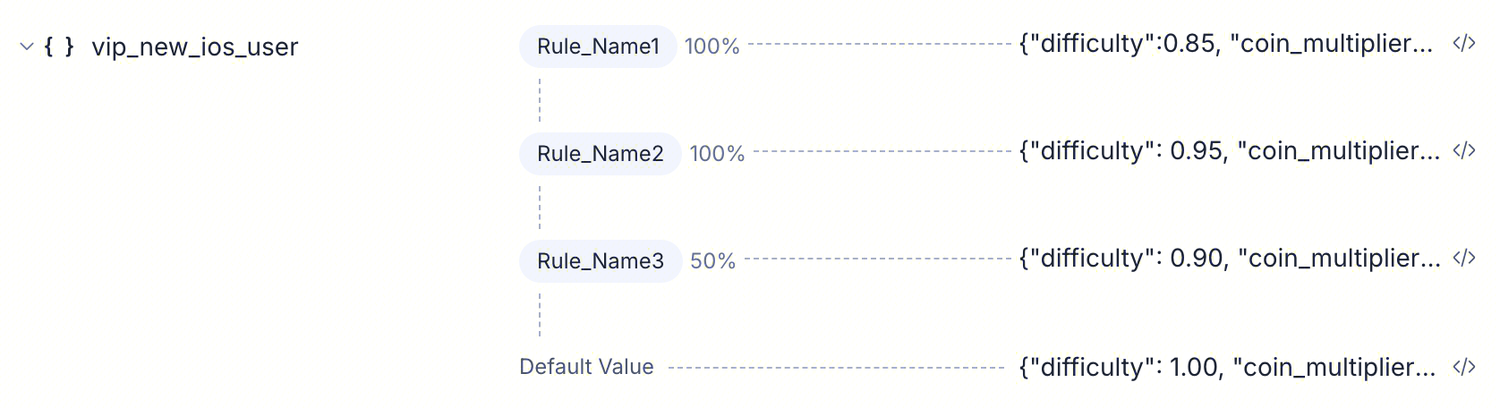
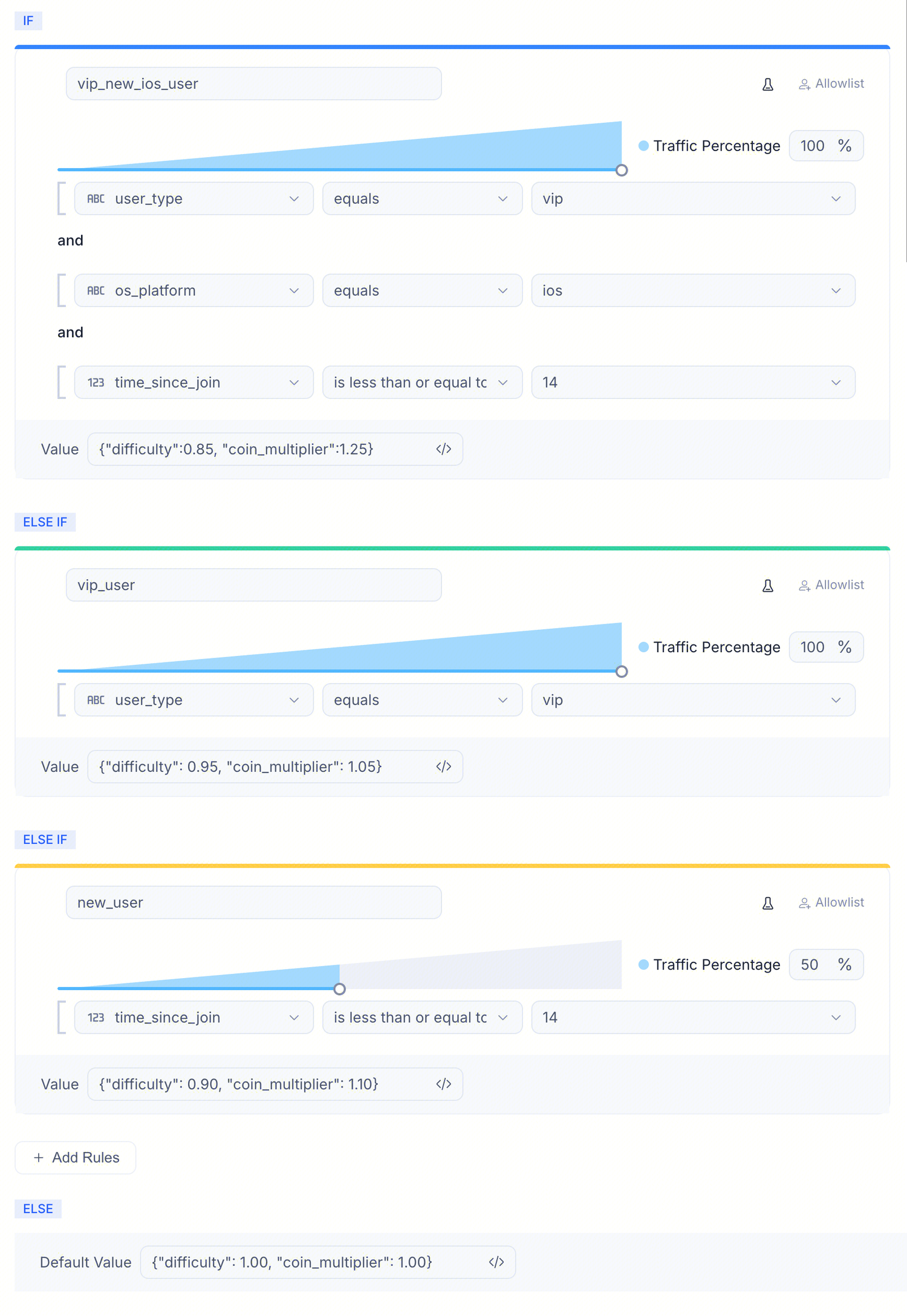
The Rules section presents rules as an IF / ELSE IF / ELSE list:
Evaluation order
Rules are evaluated from top to bottom. For each request:
- Take the first rule.
- Check whether the user matches the audience and falls within the traffic percentage. If both conditions are met → return that rule's value and stop.
- Otherwise, move to the next rule.
- If no rule matches → return the Default Value.
A user matches at most one rule. Reordering rules means redefining priorities — Add Rules appends a new rule at the bottom; drag to reorder.
Order matters more than coverage. Two rules with overlapping audiences will only ever trigger the one listed first. Put the most specific rules at the top, the broadest fallback at the bottom.
Edit modes
The setup page provides two edit modes (Form / JSON toggle):
- Form (default) — card-based visual editing
- JSON — the same rules expressed as JSON; use this when copying a complete rule set across configs or environments
JSON edits sync back to the Form view in real time.
What a rule contains
Each rule has 4 fields:
| Field | Description |
|---|---|
| Select Audience | Select an existing audience by name |
| Allowlist | A fixed set of user IDs that always match this rule regardless of audience or traffic percentage. Commonly used for QA and internal users |
| Traffic Percentage | Of the users who match the audience, the fraction actually served by this rule |
| Value | The value returned when this rule is matched. The editor style changes with the value type |
About Traffic Percentage
Traffic Percentage applies after the audience matches. For example, if a rule's audience is vip_user and Traffic Percentage = 50, then roughly half of VIP users match this rule; the other half flow to the next rule or the default value.
This lets you run a gradual rollout without touching the audience:
- Day 1 — set traffic to 5%; 95% of matching users still get the default value
- Day 3 — metrics look healthy; raise to 25%
- Day 7 — raise to 100%; fully live
If you promote this rule to an experiment, the experiment further splits that traffic slice into different variants.
How the audience selector works
Rules store the audience name, not a copy of its conditions. The audience's attribute conditions are rendered in read-only form below the selector so reviewers can see the full filter (e.g. os_platform equals "ios") without leaving the setup page.
Because a reference is stored rather than a copy, editing an audience changes the target population for every Remote Config (and experiment) that references it. The platform locks the audience's rule-editing entry point when it is referenced by an active experiment to prevent accidental drift.
Default Value
ELSE → Default Value is required. When no rule matches — either because no audience matched, or a user matched an audience but was excluded by the traffic percentage — the SDK returns this value.
The default value should be the safest value for the largest group, typically the old value from before launch. New behavior is introduced by adding rules on top of the default value, not by changing the default value in place — this way, clients falling back to the default value do not experience a sudden behavior change.
Rule order and overlapping audiences
When two rules reference audiences that overlap, users in the overlap will only ever trigger the rule listed first.
Order by specificity: put the most specific audience at the top, the broadest (or default) at the bottom.
A common pattern:
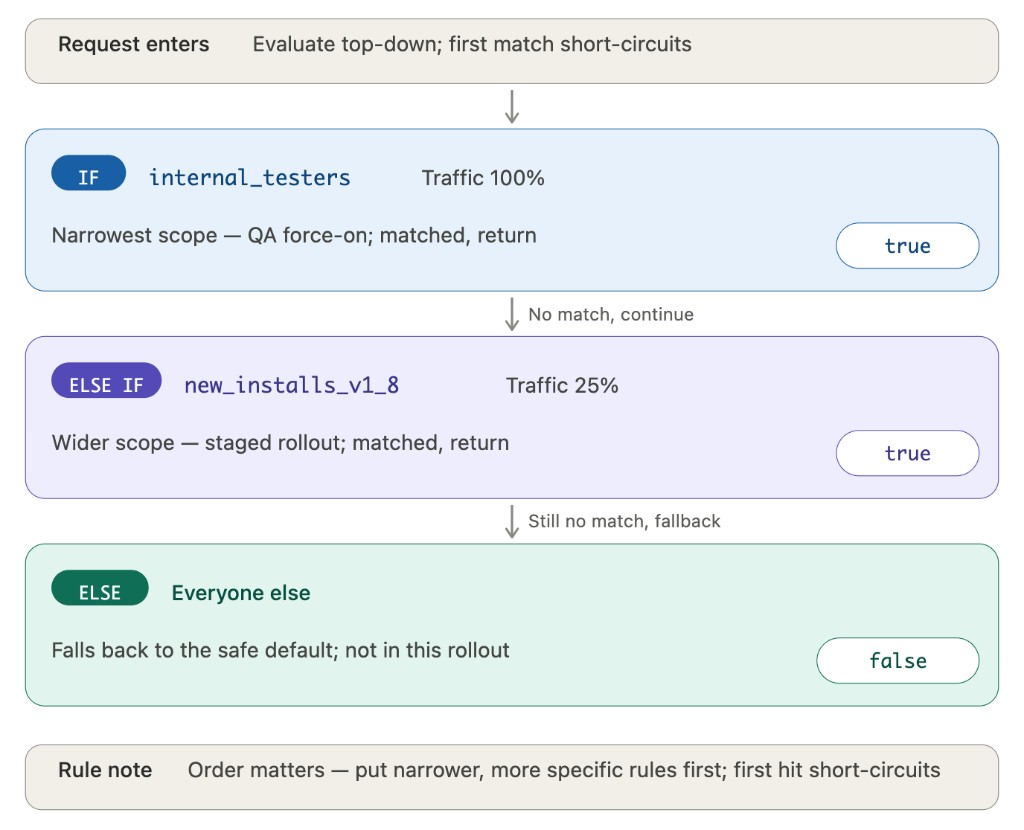
If rules 1 and 2 were swapped, internal testers would fall into the new_installs_v1_8 bucket first and could not be force-enabled, because the broader audience matched first.
Archive
The platform's recommended way to retire a config:
- Hidden from the default list view (visible only with the Status filter set to Archived)
- No longer evaluated for new SDK requests
- Associated experiments that are In Progress continue to resolve for already-bucketed users; new traffic no longer enters this config
Note: If you try to archive a config that is driving an Active experiment, the platform will reject the request — end or stop the experiment first.
Unarchive
The ⋮ menu on an archived row provides Unarchive. After restoring, the status returns to Active and the config re-enters SDK evaluation.
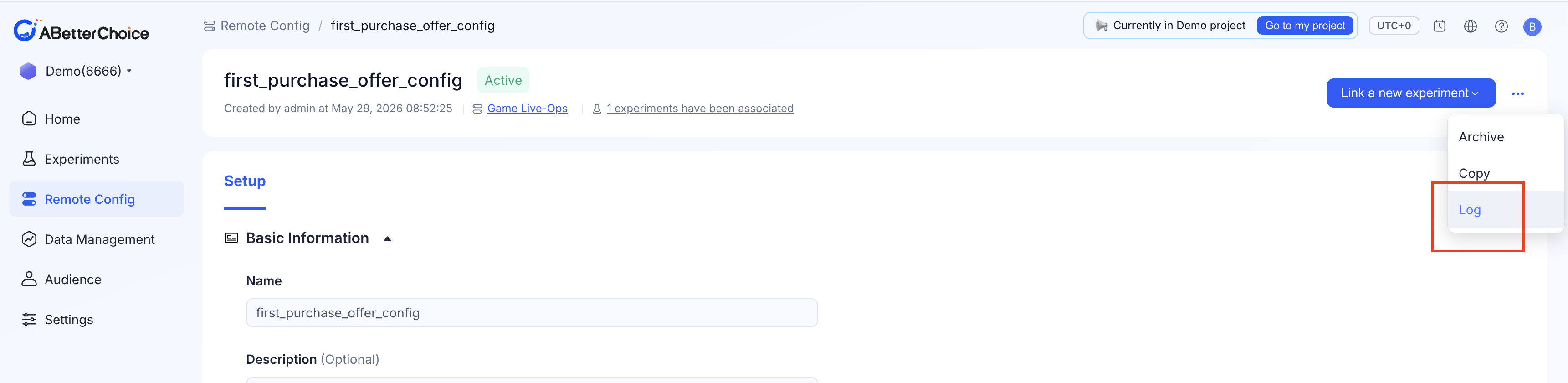
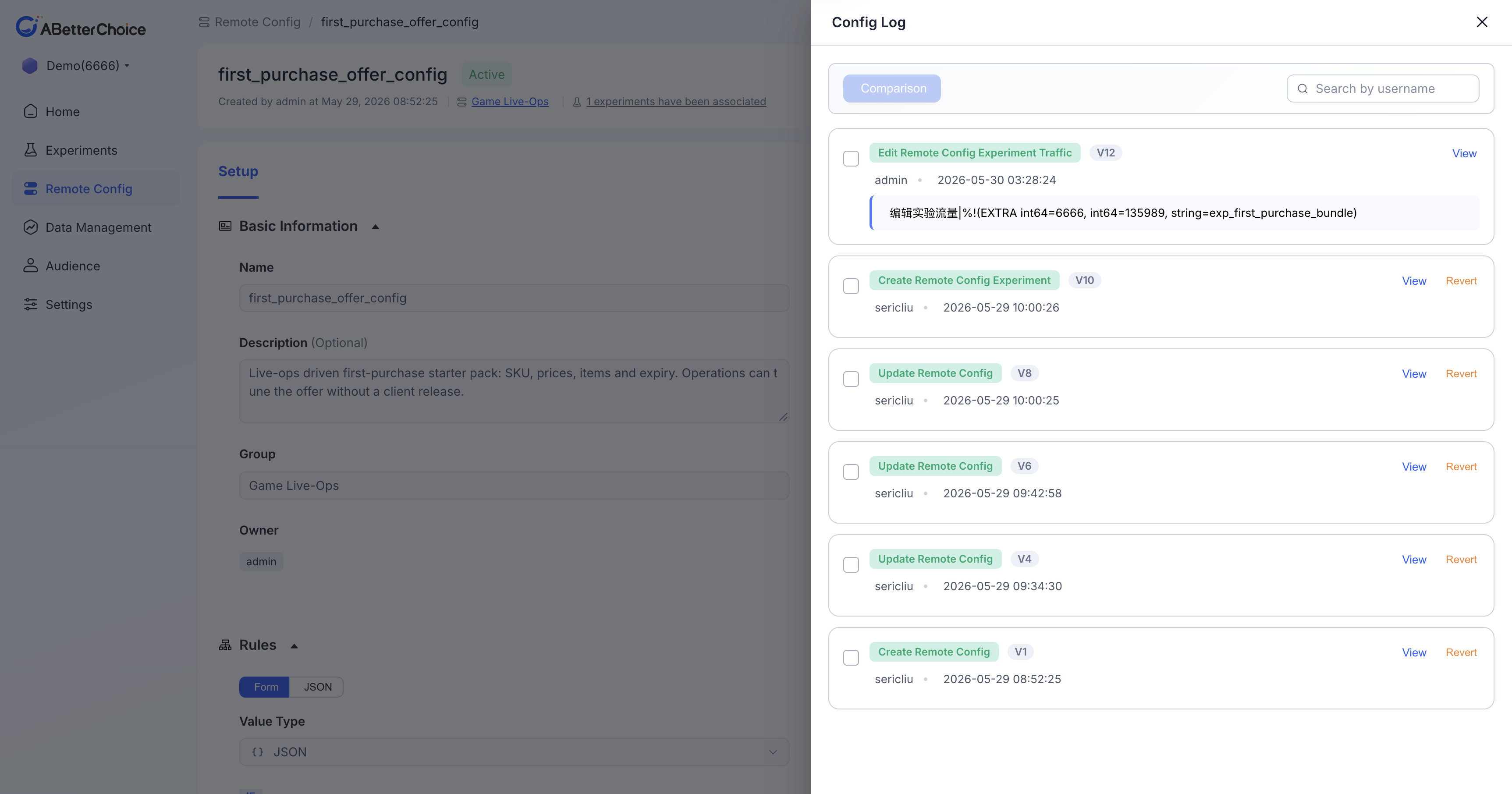
Log (audit history)
Every save creates a log entry. Open the Log menu on the detail page to view the history: each row shows one change — who, when, and which fields changed.