

Layer Experiment
A Layer Experiment is ABC's default and most commonly used experiment type. It uses the layer-and-domain architecture to isolate traffic, letting you run multiple non-interfering experiments on the same user base at the same time.
This page is for experiment owners who need to run several experiments in parallel without cross-contamination.
Why choose a Layer Experiment
Layer Experiments are ABC's default and most commonly used type. The core advantages are:
- Parallel experiments — multiple experiments can run on the same users at the same time without interfering, maximizing traffic utilization.
- Traffic isolation — experiments in the same layer are mutually exclusive (a user matches at most one), preventing parameter conflicts from polluting results.
- Cross-layer independence — different layers use independent hash seeds for assignment, so variant assignments are statistically orthogonal and effects can be measured independently.
Choose a Layer Experiment when you need to run multiple experiments at once and want clean, unbiased results.
Before creating a Layer Experiment, configure Layers & Domains first. See Overview.
Create a Layer Experiment
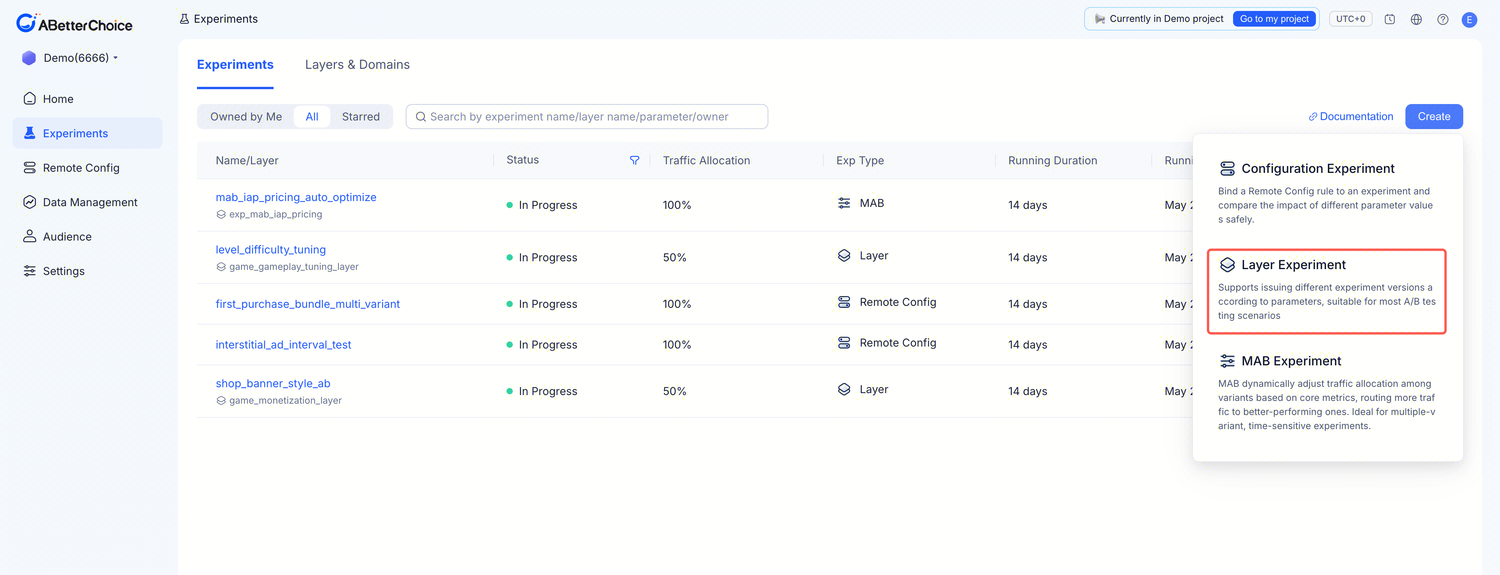
After Layers & Domains are configured, you can create a Layer Experiment.
Step 1: Basic Information
- On the Experiments tab, click Create in the top-right corner.
- Select Layer Experiment from the dropdown menu.
- Fill in the basic fields:
| Field | Description |
|---|---|
| Experiment ID | Unique identifier; can only contain letters, numbers, and underscores. |
| Owner | Experiment owner (auto-filled with the current user). |
| Layer (optional) | After checking "Ensure this experiment is mutually exclusive with others", select an existing Layer from the dropdown. The list shows each Layer name and its available traffic percentage (e.g. "regration_layer — 50% Available"). If no suitable Layer exists, click Create layer at the bottom to create one. Without Layer checked: the experiment is not bound to any mutually exclusive layer and does not enforce traffic isolation against other experiments. |
Step 2: Hypothesis & goals
| Field | Description |
|---|---|
| Hypothesis | Describe your hypothesis — the expected change and how you will measure it. |
| Select Metrics | Click + Metrics to add metrics the experiment will track. |
Step 3: Allocation and Groups
- Traffic Allocation — enter the percentage of traffic allocated to this experiment. Note: this percentage comes from the selected Layer's available traffic (the page shows "of layer traffic allocated to this experiment"), not global traffic. The remaining available percentage for the current Layer is shown below.
- Variants — Control (control group) and Treatment_A (treatment group) are included by default. Click Add Variant to add more variants. Traffic allocation across variants must sum to 100%.
- Parameters — click + Add parameter to add parameters and set a value for each variant.
- Allowlist (optional) — validate experiment behavior with an allowlist.
- Targeting audience (optional) — target the experiment to a specific audience via audience rules.
- Add Assignment Source — select the assignment data source in your data warehouse (e.g. exposure; usually pre-filled).
Click Create to create the experiment. It appears in the list with status Not Started.
Layer Experiment vs other types
| Layer Experiment | Remote Config Experiment | MAB Experiment | |
|---|---|---|---|
| Traffic model | Shared Layer traffic pool | Each audience gets independent 100% traffic | Dynamic allocation |
| Best for | Most A/B tests, parallel experiments | Cross-region parameter tuning | Rapid selection |
| Statistical rigor | Full | Full | Exploitation-focused |
| Auto-publish on Ship | No (manual or Layer default values) | Yes (writes back to Remote Config) | No |