

Audience Rules and Attributes
This page covers both audience rules and user attributes. It starts with attribute types and management — the building blocks of audiences — then explains the rule editor's fields, operators, and AND / OR combinations.
User attributes
An attribute is a piece of user information that ABC knows about — the user's country, current app version, tenure, and so on. Audiences use "attribute + operator + value" expressions to describe the users they target.
Where to manage
Click Audience → Attributes in the left navigation to see all available attributes in the project:
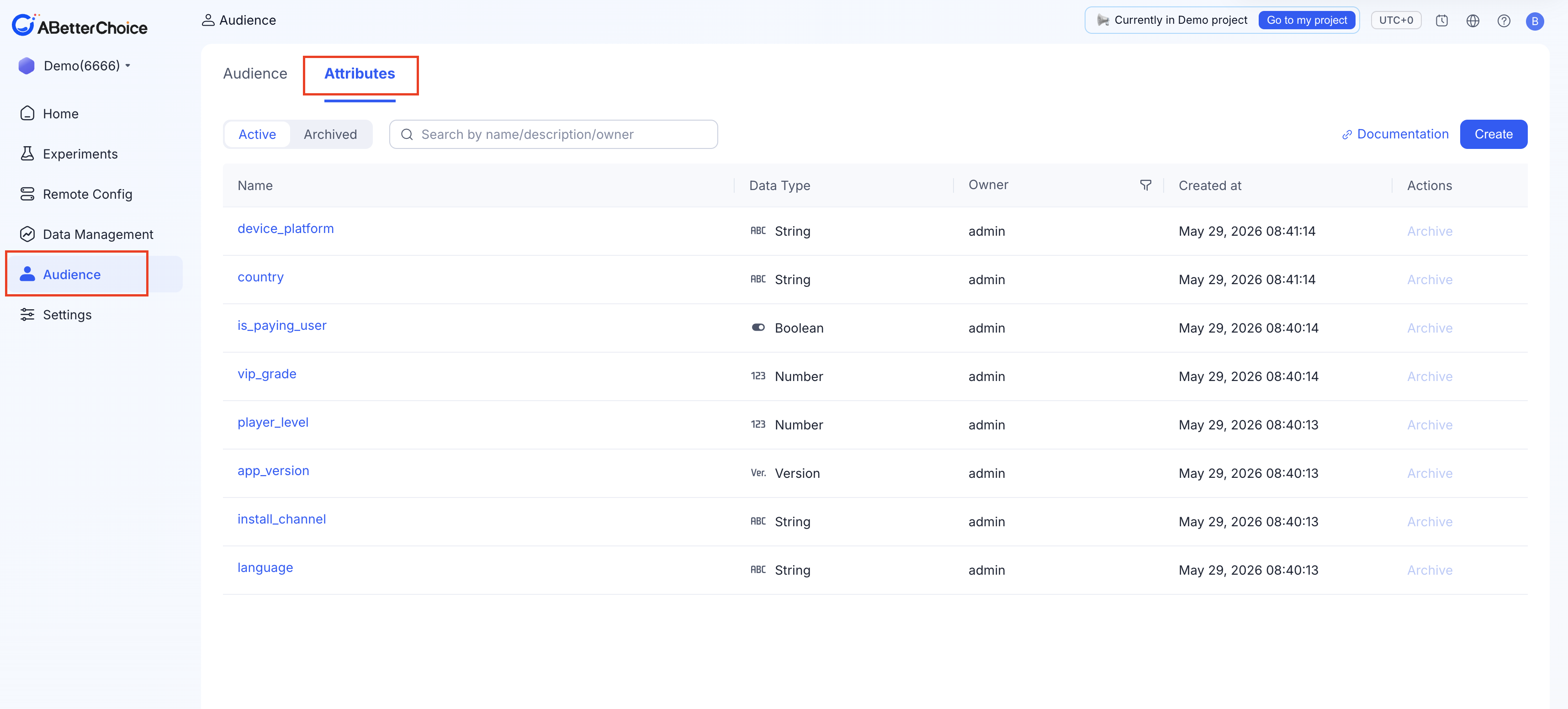
The Active / Archived filter at the top lets you filter by state; the search box matches substrings in name, description, and Creator.
Data types
Each attribute has exactly one data type, which cannot be changed after creation. The data type determines which operators are available in the audience rule editor.
| Type | When to use | Common operators |
|---|---|---|
| String | Categorical labels — country, platform, channel | equals, does not equal, is in, is not in, contains |
| Number | Continuous or count values — RAM, session count | equals, is less than, is greater than, is between, and more |
| Boolean | Binary flags — is_paying, is_internal_tester | equals, does not equal |
| Version | Semantic version strings like 1.3.0 | equals, is less than, is greater than, and more |
⚠️ Version is a structured type, not a string:
1.10.0is correctly recognized as greater than1.9.0. Do not use String for version fields — string lexicographic sorting would place1.10.0before1.9.0.
Creating an attribute
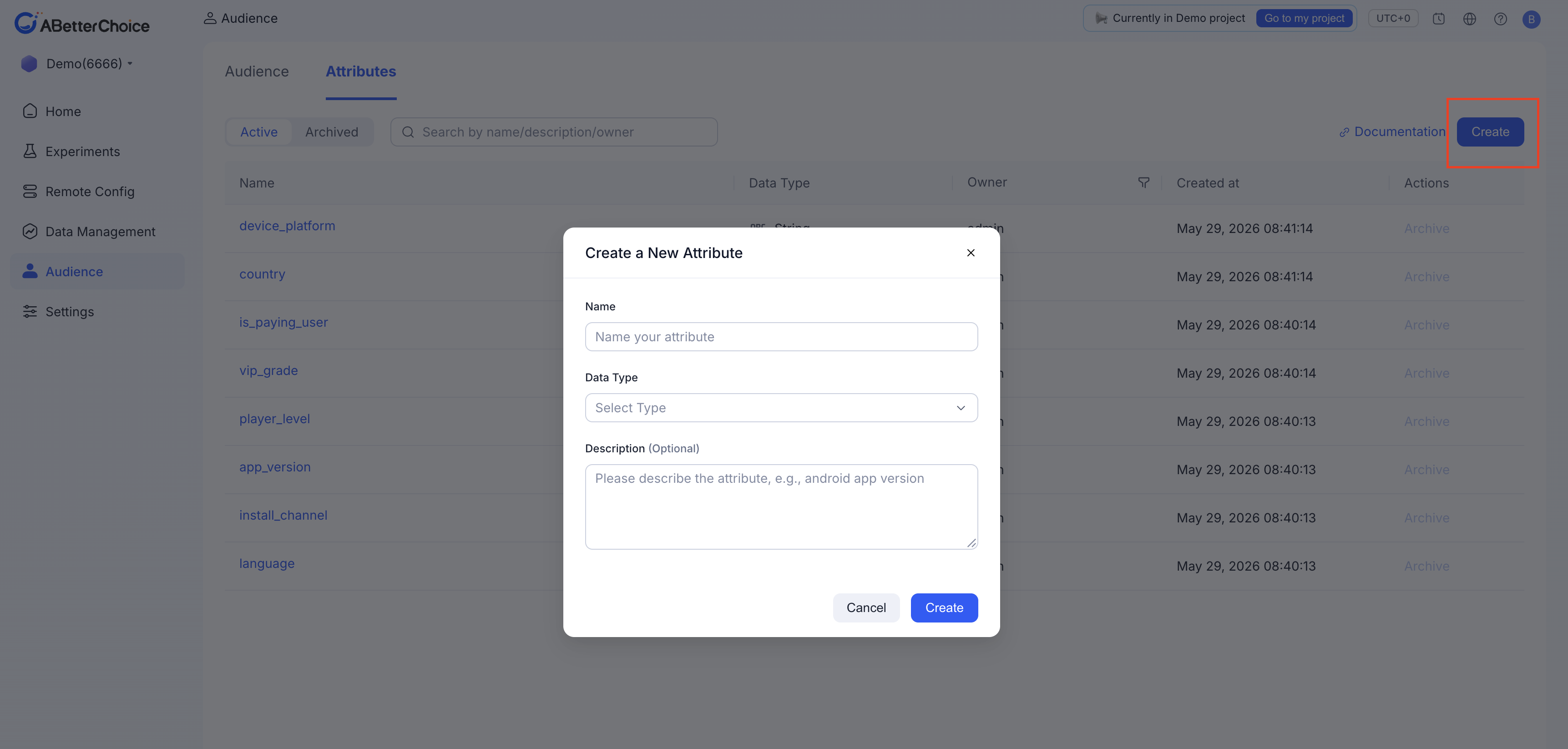
- Name — the label shown in the audience rule dropdown; use snake_case (e.g.
first_install_version). - Data type — required and cannot be changed after creation. If you pick the wrong type, archive the attribute and create a new one.
- Description (optional) — recommended; describe what this attribute represents and where its value comes from.
How user attributes are matched
When ABC evaluates an audience or attribute, it reads from the user object attached to the request. There are two ways to supply that object:
- Via SDK / HTTP API — include the field values in the user object on every request that requires assignment. For client-side experiments this is the only viable path.
- Via data warehouse — for experiments that read attributes from a warehouse user-attribute table, the attribute name in the platform must match the column name in the warehouse table exactly.
Attribute lifecycle and constraints
- Renaming is not supported — to rename an attribute, archive the old one, register the new name, and update every audience that references it.
- Changing data type is not supported — the field is disabled after creation.
- Archive removes the attribute from the Active list and from the rule editor dropdown.
- Once an attribute is indirectly referenced by an audience that is itself referenced by an active experiment, the attribute cannot be modified. To make changes, archive the audience first, or wait for the referencing experiment to finish.
- Archived attributes remain visible in the Archived view and can be restored.
Audience rules
An audience rule is the boolean expression that determines which users belong to an audience. This section explains the rule editor's fields, how operators are constrained by data type, and the evaluation order for OR / AND conditions.
Prerequisites
- All attributes you plan to reference are already registered under Audience → Attributes.
- You have edit permissions in the project.
Steps
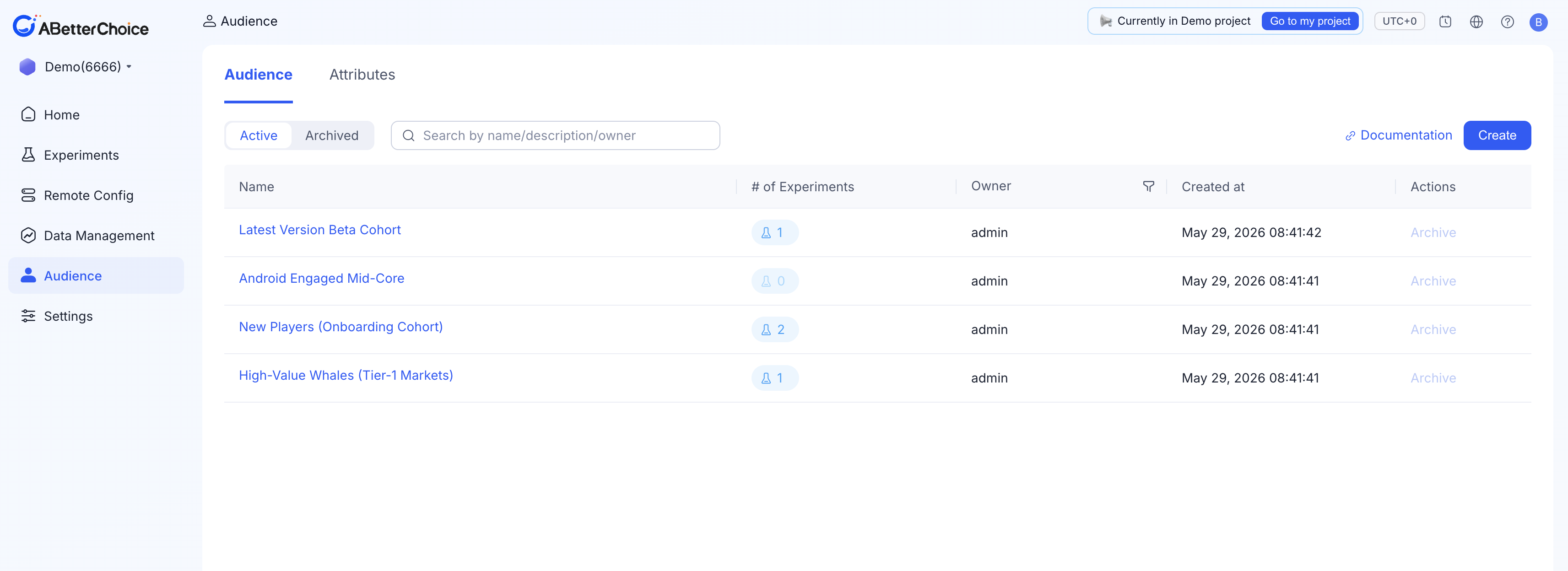
- Click Audience in the left navigation.
- Click Create in the top-right corner of the audience list to open the Create a New Audience page.
1. Basic information
| Field | Required | Notes |
|---|---|---|
| Name | Yes | Used to reference this audience elsewhere (experiment Setup, change log). Must be unique within the project. |
| Description | No | Searchable on the list page. Recommended — write the intent clearly, e.g. "iOS users, 1.3.0+, for new onboarding experiment". |
| Creator | Yes | Defaults to yourself. You can add more owners; each can edit the audience. |
2. Rules
Each rule row has three fields:
| Field | Purpose |
|---|---|
| Select attribute | Choose an attribute from the project attribute catalog. |
| Select operator | Choose a comparison operator. Available options are determined by the attribute's data type. |
| Search or add attribute values | Select one or more comparison values; press Enter to confirm each one. |
The value field accepts free input — type a value and press Enter to add it as a chip. Repeat to add multiple values; chips within a single row represent "match any one of these" semantics.
Operators by data type
Available operators depend on the attribute's data type:
| Data type | Operators |
|---|---|
| String | equals, does not equal, is in, is not in, contains |
| Boolean | equals, does not equal |
| Number | equals, does not equal, is in, is not in, is less than, is greater than, is less than or equal to, is greater than or equal to, is between |
| Version | equals, does not equal, is in, is not in, is less than, is greater than, is less than or equal to, is greater than or equal to, is between |
Version operators compare version numbers structurally —
1.10.0is correctly recognized as greater than1.9.0.
Combining rows with AND / OR
The rule editor has two levels of boolean logic:
- OR rows — adding multiple rows within the same condition group means "any row matches = true". OR is evaluated first.
- AND groups — adding a new group means "all groups must match". The word AND is displayed between groups.
The full expression is in sum-of-products form: (row OR row) AND (row OR row).
Example 1: Version + device
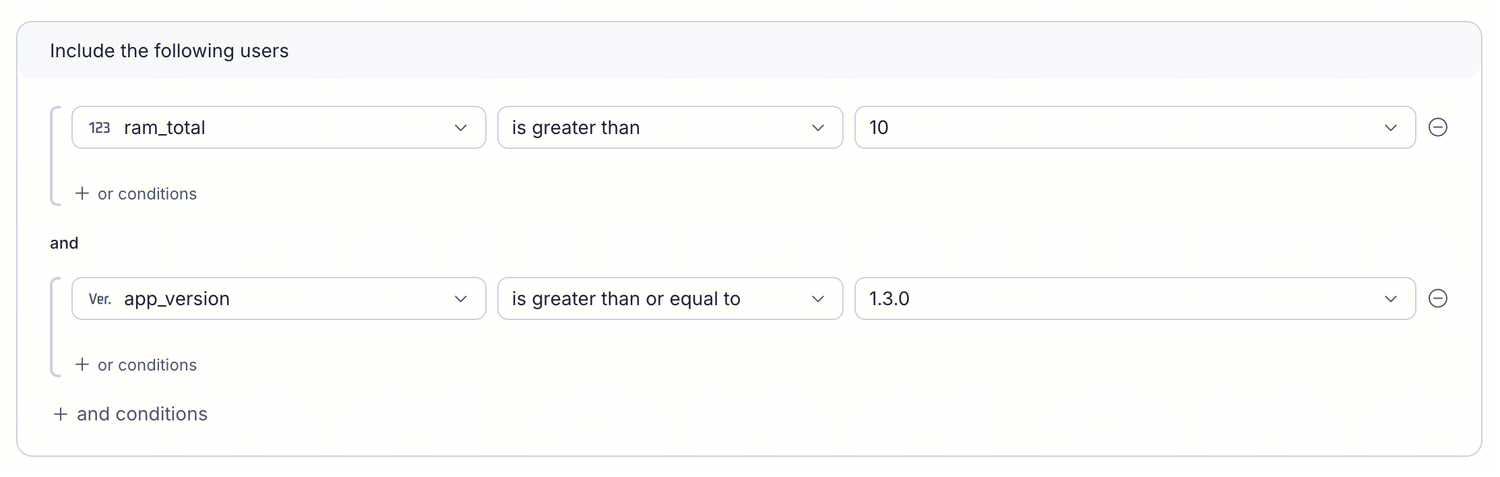
Meaning: App version ≥ 1.3.0 AND RAM > 10 MB.
Example 2: Multi-country combination
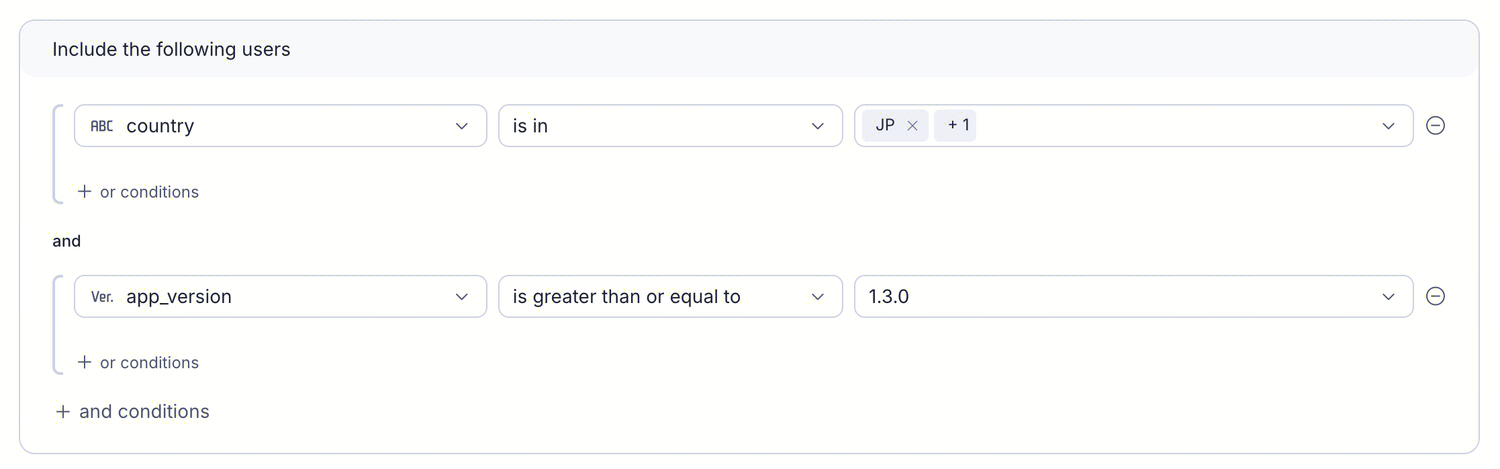
- Group one has two
countryrows usingis in— users from Japan or Korea satisfy that group. - Group two has a single
app_versionrow. - The two groups are joined by AND, so users must satisfy both groups.
This is cleaner than creating a separate audience per country, and easier to maintain when you need to add more regions later.
Editing rules after creation
Once an audience is referenced by at least one In Progress experiment, the rule editor becomes read-only. To modify rules:
- Wait for the referencing experiment to finish, or archive it first.
- Open the audience, click Edit, and adjust the rules.
- Save.
Experiments that start after an edit evaluate users against the new rules. Experiments that were already running when the edit happened keep their existing assignment results, but new exposures after the edit are evaluated against the new rules.
Safer approach: When you need to change rules mid-flight, copy a new audience instead of editing the original.