

Remote Config Overview
Remote Config is ABetterChoice's server-side parameter management capability. When you need to flip a switch, update copy, or adjust a numeric parameter, you don't need to ship a new build — save the new value in ABC and clients pick it up on the next fetch.
This page is the introduction. It gives you an overall picture of what Remote Config can do, what it looks like, and how to use it. For deeper usage, see:
- Values and Rules — read this when you're creating or editing a config
- Remote Config Overview — read this when you want to promote a rule into an A/B experiment
1. Business problems Remote Config solves
Scenario 1: Adjust parameters without a new release
Background: After a game goes live, you discover that a holiday event's reward multiplier was set too high and revenue falls short of expectations. The traditional approach is to change the code → build → ship a new version → wait for users to update — a week at best.
Remote Config approach: Change event_reward_multiplier from 1.5 to 1.2 in Remote Config → Save → the change takes effect on the next SDK fetch, rolling out to all users within minutes.
Scenario 2: Different values for different audiences
Background: Xiaomi, OPPO, vivo, and Transsion users should see different ad mediation strategies. The traditional approach is to write verbose if/else in code and ship every time the business logic changes.
Remote Config approach: Add three rules to iaa_mediation_reward_conf:
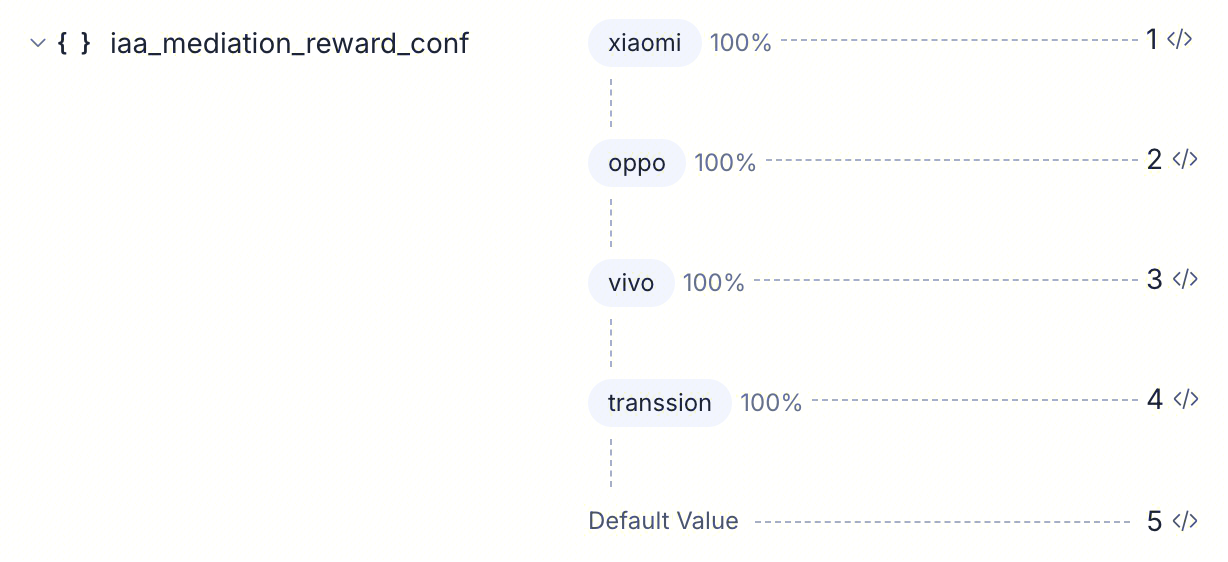
Not a single line of code changes. Remote Config returns the right value based on each user's attributes.
Scenario 3: Emergency kill switch
Background: A newly launched activity page is triggering frequent crashes. The traditional approach is to push a hotfix → ship a new version — several hours at best.
Remote Config approach: Add an enable_event_page switch to the code in advance. When something goes wrong, change its value from true to false in Remote Config → users no longer see that page on their next app launch, preventing mass crashes.
Scenario 4: Gradual rollout
Background: A homepage promo banner redesign. You don't want to roll it out to everyone at once — start with 5% of users, then expand to 25% / 50% / 100% once metrics look healthy.
Remote Config approach: Add a rule to show_new_banner tied to the "new version users" audience, and gradually increase the traffic percentage from 5% to 25% / 50% / 100%. If something goes wrong, set it back to 0% at any time for a full rollback.
2. What a Remote Config contains
Every config is made up of four things, all edited on the same setup page:
| Field | Description |
|---|---|
| Name | The stable identifier the SDK reads. Letters, numbers, and underscores only; cannot be changed after creation |
| Value Type | One of String / Number / Boolean / JSON; determines the rule editor style |
| Rules | IF / ELSE IF branches that map audiences and traffic percentages to specific values, with a final ELSE fallback |
| Group | The folder the config belongs to (Ungrouped by default); also defines the boundary for multi-parameter experiments |
For details on choosing a value type, structuring rules, and each field, see Values and Rules.
3. Where to manage configs
Click Remote Config in the left navigation. The page has two sections:
- Groups sidebar (left) — All Configurations, Ungrouped, and custom groups (e.g.
iaa) - Table (right) — Columns: Name, Status, Experiments, Value Type, Creator, Created At, Actions
Supports Owned by Me / All / Starred view switching, with a search box that matches substrings by name or owner. 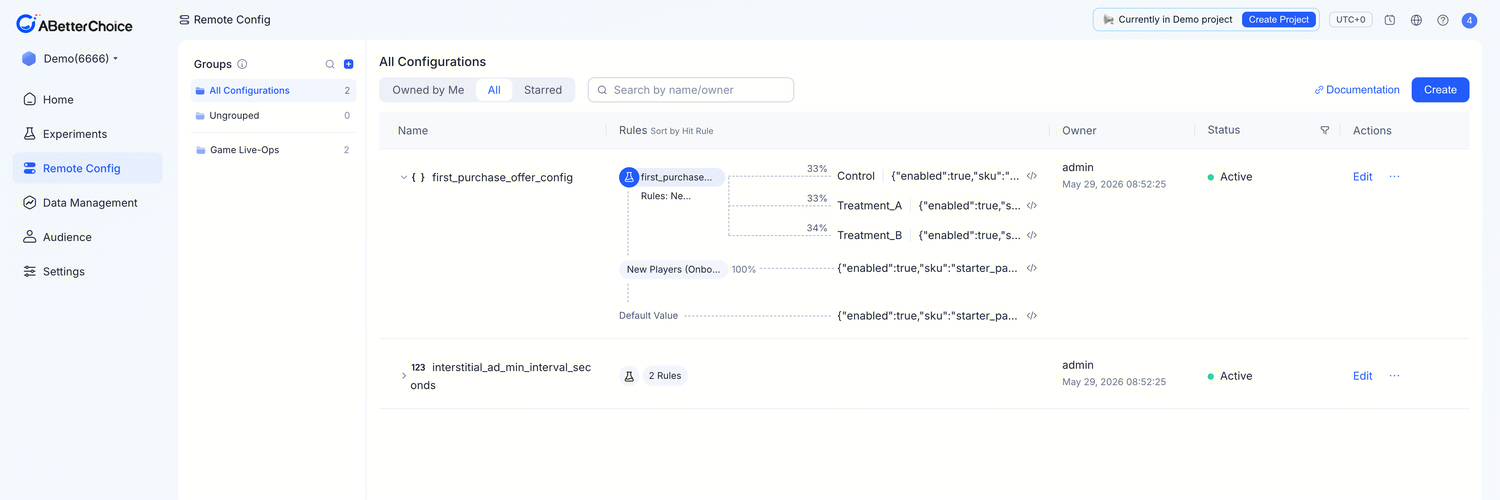
4. How Remote Config relates to experiments
Remote Config and experiments share the same evaluation pipeline. The logic works as follows: 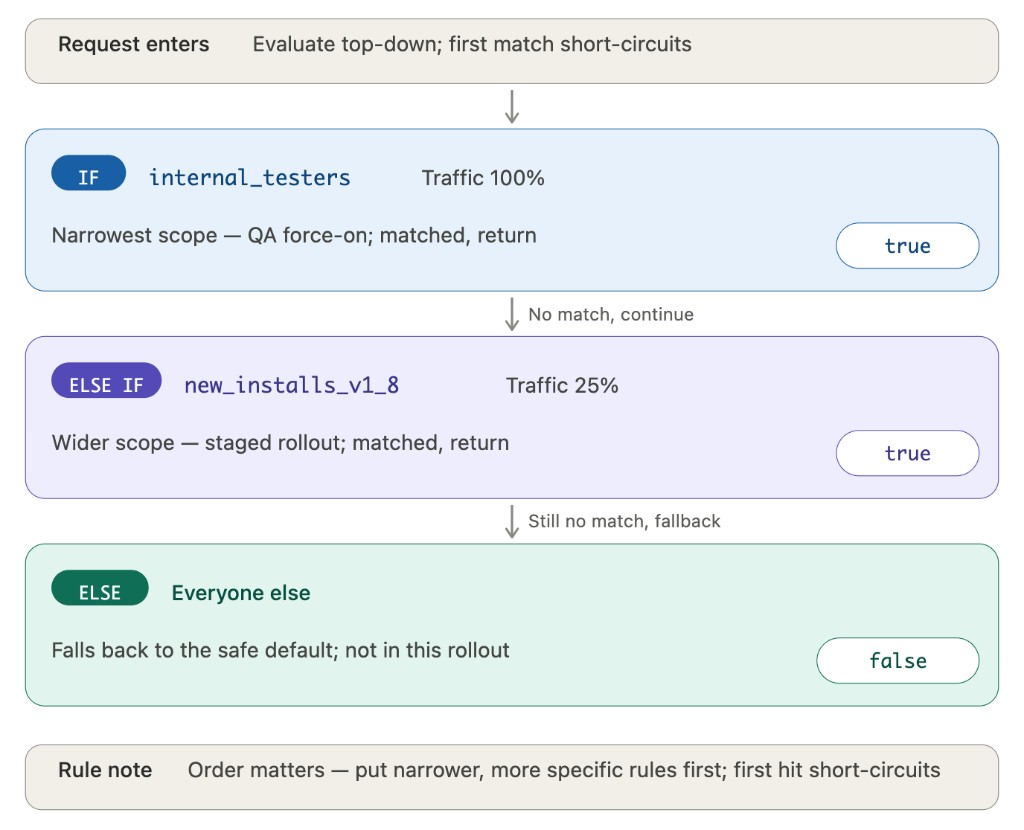
- Rules are evaluated from top to bottom, checking whether a user's attributes match the audience and whether the user falls within the rule's traffic percentage.
- On the first match, the rule's value is returned and evaluation stops.
- If no rule matches, the config's Default Value is returned.
Any rule can serve as the traffic source for an experiment. The experiment splits the users matched by that rule into different variants and tracks metrics per variant — the config itself continues to serve the appropriate value to everyone else via the same rules. See Remote Config Overview.
5. Lifecycle at a glance
A Remote Config's lifecycle is intentionally short: Active by default after creation, can be duplicated and moved between groups, and is eventually retired via Archive.
| Status | Description |
|---|---|
| Active | The config participates in SDK evaluation. Default state for new configs |
| Archived | The config is hidden from the default list and no longer participates in evaluation. Configs with associated experiments can still be resolved |
Archiving is not deletion — the config's name, rules, history, and associations are all preserved, and you can Unarchive it to restore it. An archived config's name still occupies the namespace: you cannot create a new Active config with the same name.
Configs that have live experiments cannot be archived directly — you must first end or stop the experiment.
6. Groups at a glance
A Group is a folder that holds a subset of the project's Remote Configs. It solves two things:
- When a project has many configs, it organizes the list so you can scan it at a glance.
- It defines the boundary for multi-parameter experiments (only configs within the same group can be tested together in a Remote Config Experiment).
| Group | Description |
|---|---|
| All Configurations | All Active and Archived configs in the project (ignores groups; useful for global search) |
| Ungrouped | The default destination; new configs with no specified group land here |
Custom groups (e.g. iaa, growth) | Groups created by users |
Common naming dimensions
- By initiative —
iaa,iap,liveops,growth - By surface —
home_page,checkout,push_notifications - By lifecycle —
experimental,stable,to_archive
Pick one dimension and stick with it. Groups do not support nesting (no subfolders). Using multiple naming dimensions at once causes the group list to grow unwieldy quickly.