

Layer Experiment Overview
Core concepts
The ABC platform's layer-and-domain architecture:
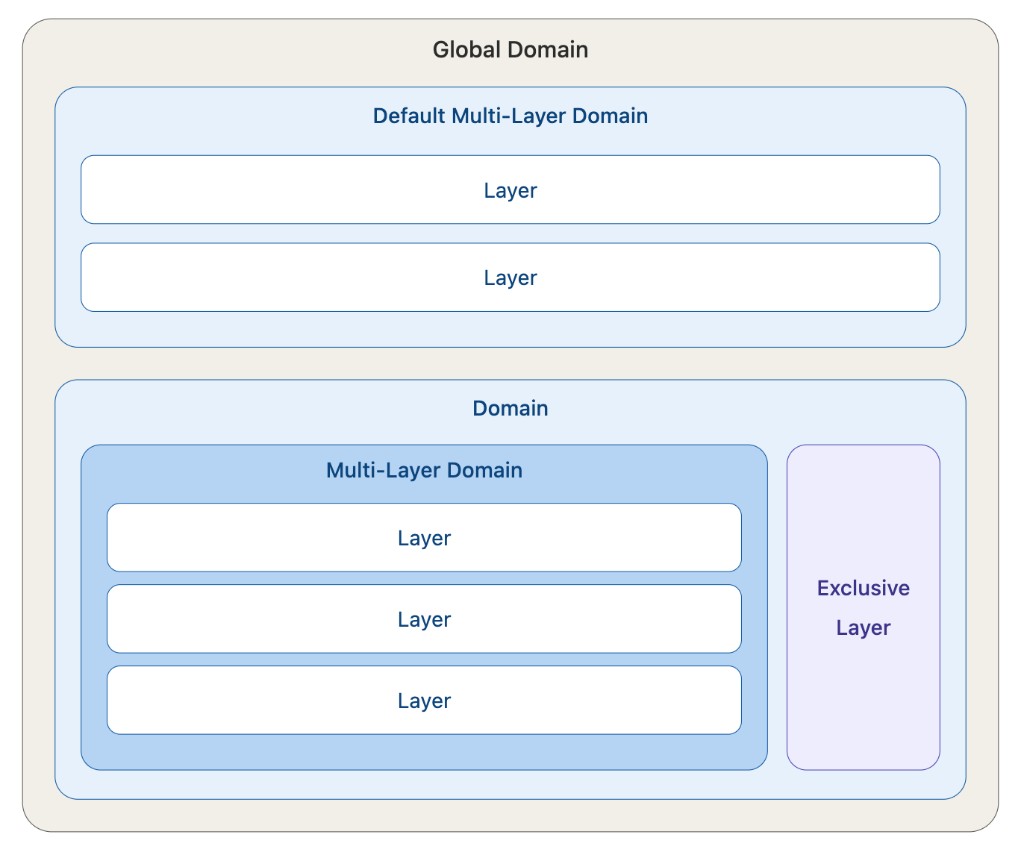
| Node type | Description |
|---|---|
| Global Domain | The root of the entire tree, representing 100% of the project's traffic. |
| Domain | A logical partition of traffic; can be nested. Each domain receives a certain percentage of traffic from its parent. |
| Multi-Layer Domain | Multiple layers within the domain share the same traffic pool and run in parallel; experiments within are not mutually exclusive. |
| Exclusive Layer | Experiments within the layer are mutually exclusive — a given user will match at most one experiment in the layer. |
Traffic isolation principles
The layered architecture achieves traffic isolation between experiments through the following mechanisms:
Mutual exclusion within a layer
Within the same Exclusive Layer, each experiment occupies a distinct bucket range. Users are assigned to a unique bucket based on a hash value, so they match at most one experiment in that layer.
Orthogonality across layers
Different layers use independent hash seeds for traffic assignment. A user's variant assignment in Layer A does not affect their assignment in Layer B. The effect of experiments in the two layers can be measured independently without interference.
Result:
- Same layer → isolated (no cross-contamination)
- Across layers → independent (can be evaluated simultaneously)
- Overall effect: avoids traffic conflicts while maximizing traffic reuse
Prerequisites: configure Layers & Domains
Before creating a Layer Experiment, you need a layer to run it on.
1. Open the Layers & Domains list
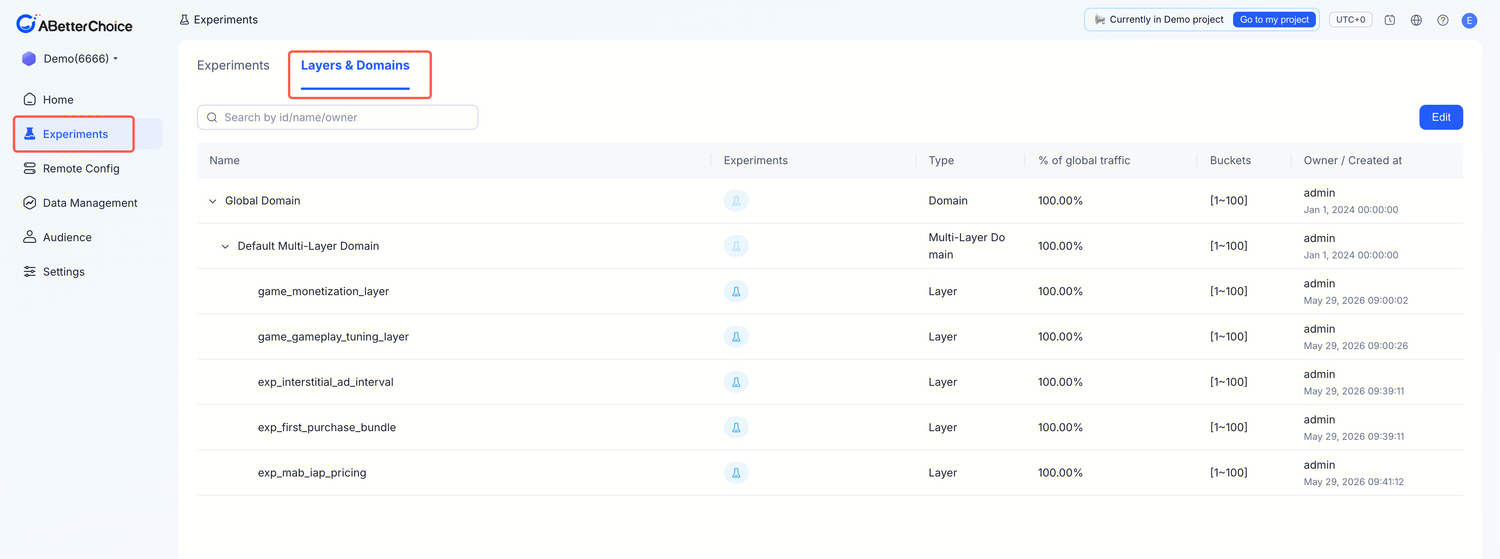 Click Experiments in the left navigation bar → switch to the Layers & Domains tab.
The page displays all nodes in the current project as a table:
| Column | Description |
|---|---|
| Name | Node name (indented to show parent-child relationships). |
| Experiments | Experiments associated with this node. |
| Type | Node type: Domain / Multi-Layer Domain / Exclusive Layer. |
| % of global traffic | Percentage of global traffic this node holds. |
| Buckets | Bucket range, e.g. [1~100]. |
| Owner / Created at | Creator and creation time. |
2. Enter edit mode
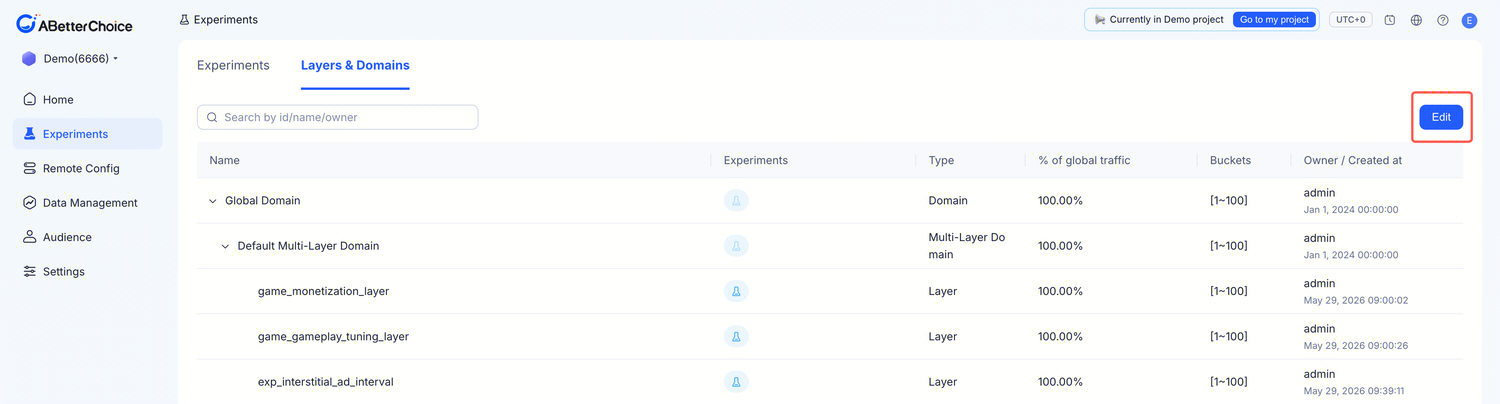 Click the Edit button in the top-right corner of the list page to enter the edit view.
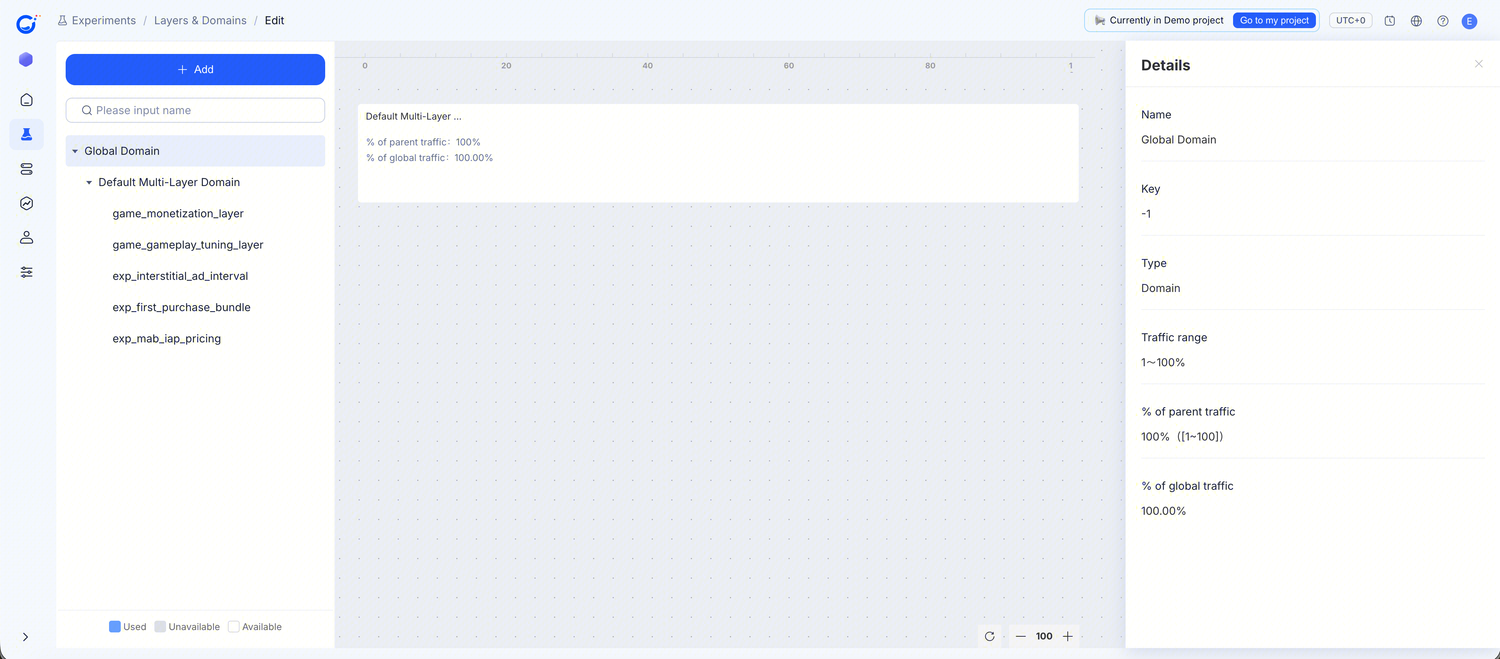 The edit view is divided into three areas:
- Left panel: Tree navigation showing the full hierarchy under Global Domain; nodes can be expanded or collapsed. A search box at the top lets you find nodes by name.
- Center: Traffic visualization showing each node's traffic allocation as a bar chart. Each node card displays
% of parent trafficand% of global traffic. - Bottom legend:
- Used — traffic already occupied by experiments
- Unavailable — traffic that cannot be allocated
- Available — remaining traffic available for new experiments
3. Add to Layers & Domains
Click the + Add button in the top-left corner. An Add to Layers & Domains panel slides out on the right:
| Field | Description |
|---|---|
| Name | Node name (e.g. "game_strategy_layer"). |
| Key | Unique identifier; can only contain letters, numbers, and underscores. |
| Parent Domain | Select the parent domain (dropdown shows all selectable domains). |
| Type | Node type (available options depend on the selected Parent Domain; see rules below). |
| Configure traffic | Percentage of traffic allocated to this node (slider). |
| Parameters (optional) | Set default parameters for this node (only available for Exclusive Layer type). |
| Description (optional) | Node description. |
Type selection rules
| Parent node | Available types | Notes |
|---|---|---|
| Global Domain | Domain | Only sub-domains can be created under the global domain as the first level of traffic partitioning. |
| Other Domain | Domain / Multi-Layer Domain / Exclusive Layer | A sub-domain can be further partitioned or turned directly into an experiment layer. |
| Type | When to use |
|---|---|
| Domain | When you need multi-level traffic partitioning, e.g. first by business line, then by feature module. |
| Multi-Layer Domain | When multiple experiments have no parameter conflicts and you want to reuse the same traffic pool to run experiments faster. |
| Exclusive Layer | When experiments have parameter conflicts or require strict isolation, so a given user matches only one experiment. |
Configure traffic
A slider control that sets the percentage of traffic this node can use.
Notes:
- The available range depends on the unused traffic remaining in the parent domain.
- If all traffic in the parent domain has already been allocated to other sibling nodes, the slider cannot be adjusted (shows 0).
- If the slider cannot be dragged, check:
- Whether a Type has been selected (the slider cannot be adjusted before a Type is chosen)
- Whether the parent domain still has remaining available traffic
Parameters
Parameters can only be configured when the Type is Exclusive Layer.
Steps:
- Click Add parameter.
- Fill in Parameter key, Value type (String / Number / Boolean / JSON), and Parameter value.
- To add more parameters, click Add parameter again.
- Click Confirm when done.
When no default parameters are configured for the node, the system uses policy ID 100000 as the default policy.