

Table Lifecycle
This page describes the lifecycle of any table registered under Data Management → Tables, regardless of whether it is an Assignment Table, a Fact Table, or a User Property Table.
States
The list view shows a Status column with two values:
Active— the default state right after registration. The table is selectable when you create experiments, metrics, audiences, or features.- Archived — reached by clicking
Archivein the list page'sActionscolumn. Archived tables stop appearing in selectors but stay visible in the list, so historical references remain readable.
Archive is the only destructive action exposed in the list page. There is no separate Delete button; archive first, then re-register if needed.
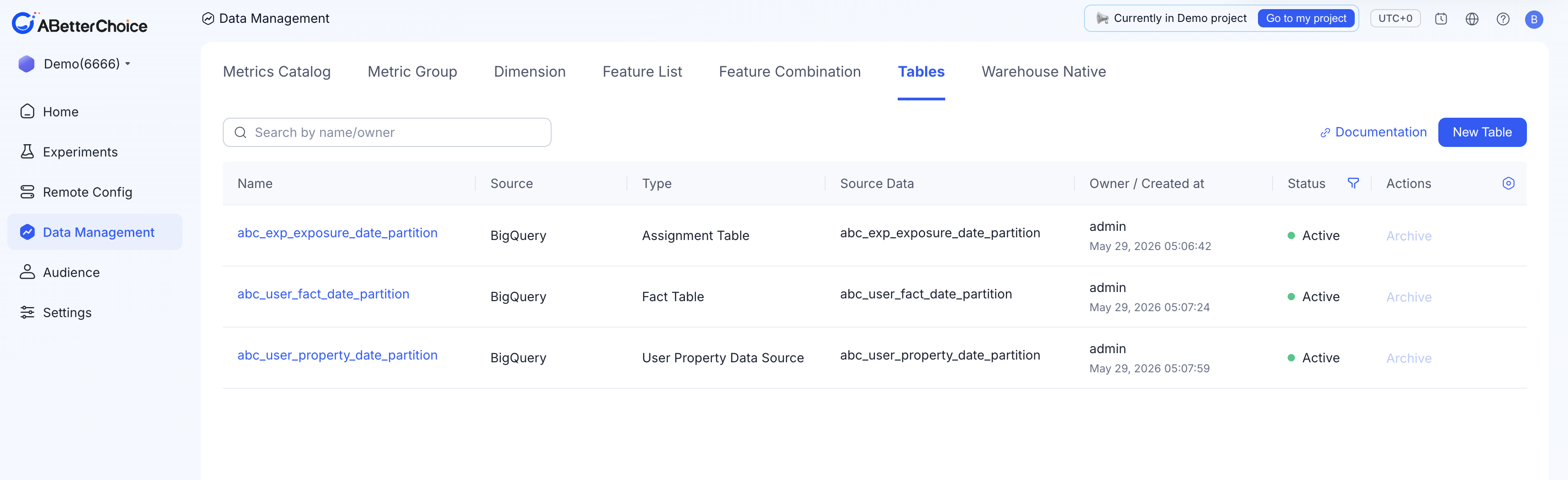
Archive is disabled when the table is in use
The Archive action greys out for any table that is currently referenced by an experiment, metric, audience, or feature. Remove or repoint the dependent objects first, and the action becomes clickable again.
Editing a registered table
Click a row in the list to open the table's detail page. Most fields are loaded read-mostly:
Data Warehouse,DataSet ID,Table ID, andNameare disabled — once you've registered a table at a given identity, you can't move it to a different BigQuery table from this page.Description,Owner,Table Type, role bindings (User ID Field,Experiment Field,Partition Field,Partition Field Type,Event Time Field), and User-Property-specific fields (Apply to Causal Inference,Data Output Type) remain editable.- The
Updatebutton at the bottom of the page is disabled until you change at least one field;Cancelreturns you to the list without saving.
The Schema panel always reflects what BigQuery currently reports for the table. Use the inline Refresh link to force a re-read after upstream changes.
Re-registering the same source table
A given BigQuery (DataSet ID, Table ID) pair can only have one registration per project at a time. If you need to re-register — for example, to switch its Table Type from Fact Table to User Property Table — the flow is:
- Open the table in the list and click
Archive. - Click
New Tableand re-register the sameDataSet ID/Table IDwith the new role bindings.
The archived row stays visible for traceability.
Reference relationships
Registered tables are referenced by other ABetterChoice objects:
- Experiments — each experiment binds to exactly one Assignment Table as its assignment source.
- Metrics — each metric binds to one or more Fact Tables as its source.
- Dimensions — reference columns from User Property Tables and Fact Tables.
- Features and Feature Combinations — read columns from User Property Tables.
Archiving a table does not retroactively break experiments that already point at it — they keep resolving against the archived definition. New experiments and new metrics can no longer pick the archived table from selectors.