

Connecting Your Warehouse
This section is for the data engineer who wires up a project to a warehouse so the rest of the team can build metrics, audiences, and experiments on top of it. Everything here mirrors what you see under Data Management → Warehouse Native in the console.
One project, one warehouse
A project can be connected to a single warehouse only. Once a warehouse is configured, the other warehouse cards become unavailable. Switching later disconnects every data source that depends on the current connection.
Supported warehouses today
Today BigQuery is the only warehouse you can actually connect. Connection details and the role / dataset setup live on the BigQuery Connection page.
Databricks, Redshift, and Snowflake cards are visible in Data Management → Warehouse Native but tagged In progress — the connectors have not shipped, so those cards are non-clickable beyond their description. They will activate in place once the corresponding connector is available.
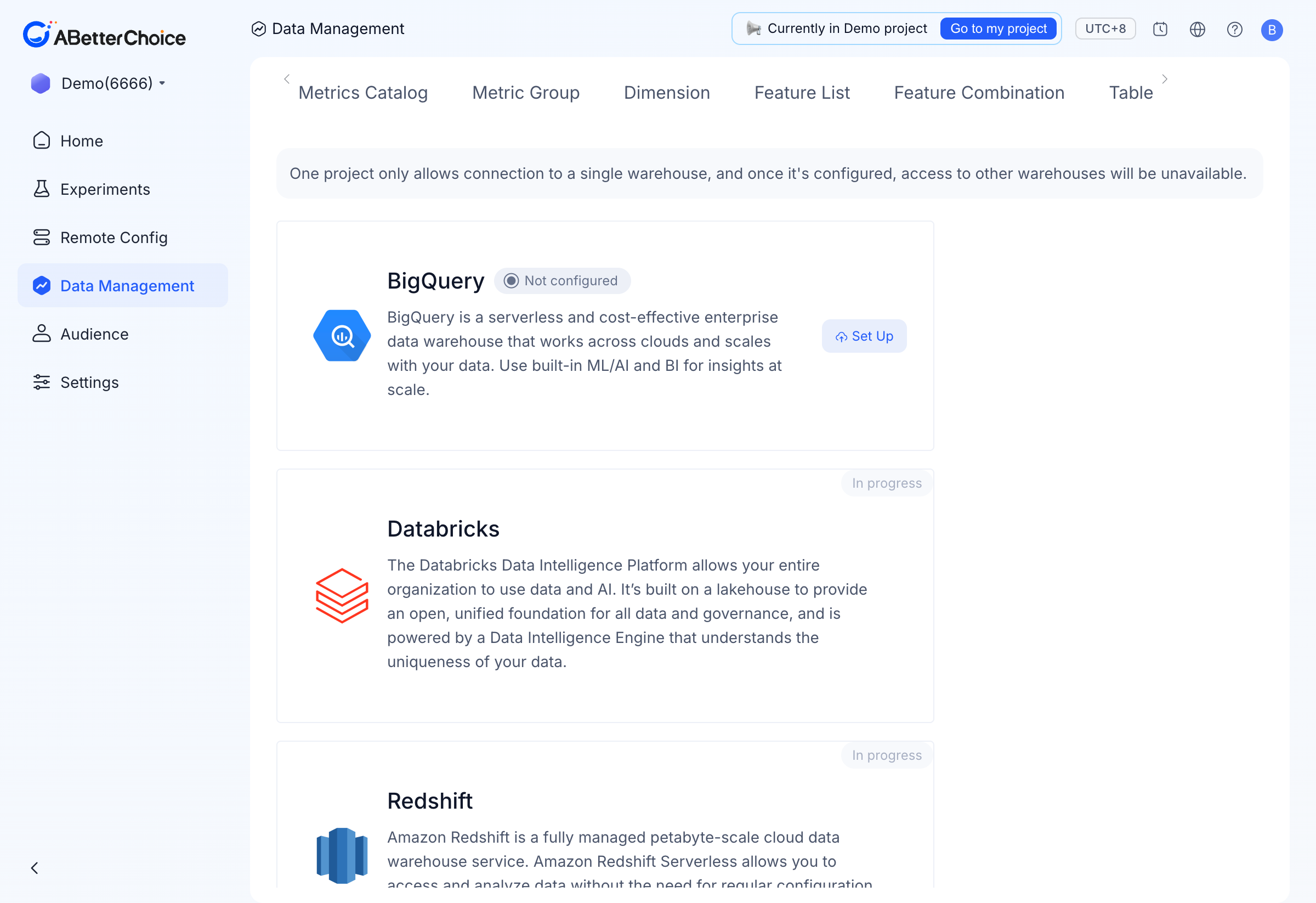
| Warehouse | Status |
|---|---|
| BigQuery | Generally available — see BigQuery Connection |
| Databricks | Coming soon |
| Redshift | Coming soon |
| Snowflake | Coming soon |
Before you start
To connect a warehouse to ABetterChoice, you need:
- Admin access to the ABetterChoice project. Only project admins can configure or change the warehouse binding.
- A dedicated service account on the warehouse side. ABetterChoice acts on this account's behalf and never holds long-lived credentials.
- Read access to your source datasets (assignment tables, fact tables, user property tables) and write access to a dedicated dataset that ABetterChoice uses to materialize temporary tables and analysis results.
The exact roles, fields, and authorization steps for BigQuery are in BigQuery Connection.
How a connection is used downstream
Once a warehouse is connected, every other Data Management surface (Tables, Metrics Catalog, Feature List, Dimension) reads and writes against it. The Warehouse Native card shows Referenced by N data sources so you can tell whether disconnecting will break existing definitions before you do it.
Changing or disconnecting a warehouse
The console exposes a single connection per project. To change the connection details (for example, rotating the BigQuery dataset used for results), open the existing card under Data Management → Warehouse Native and edit the form. Disconnecting is a destructive operation — every data source built on top of the current warehouse stops resolving until a compatible warehouse is reconnected.