

SDK Quickstart
This page is for an engineer who wants the shortest path from a freshly created project to a returned experiment assignment in their own runtime. By the end you will have:
- a project, a layer with one experiment, and an API key;
- an SDK or HTTP call that returns the unit's experiment group;
- one logged exposure on that experiment.
If you have not picked an integration shape yet, start with Choosing an SDK.
Before you start
- A project you can access (default project
6666in the demo workspace). - The
Adminrole on that project, or a teammate who can hand you a token. - One running experiment with at least one parameter — follow Create an experiment if you do not have one yet.
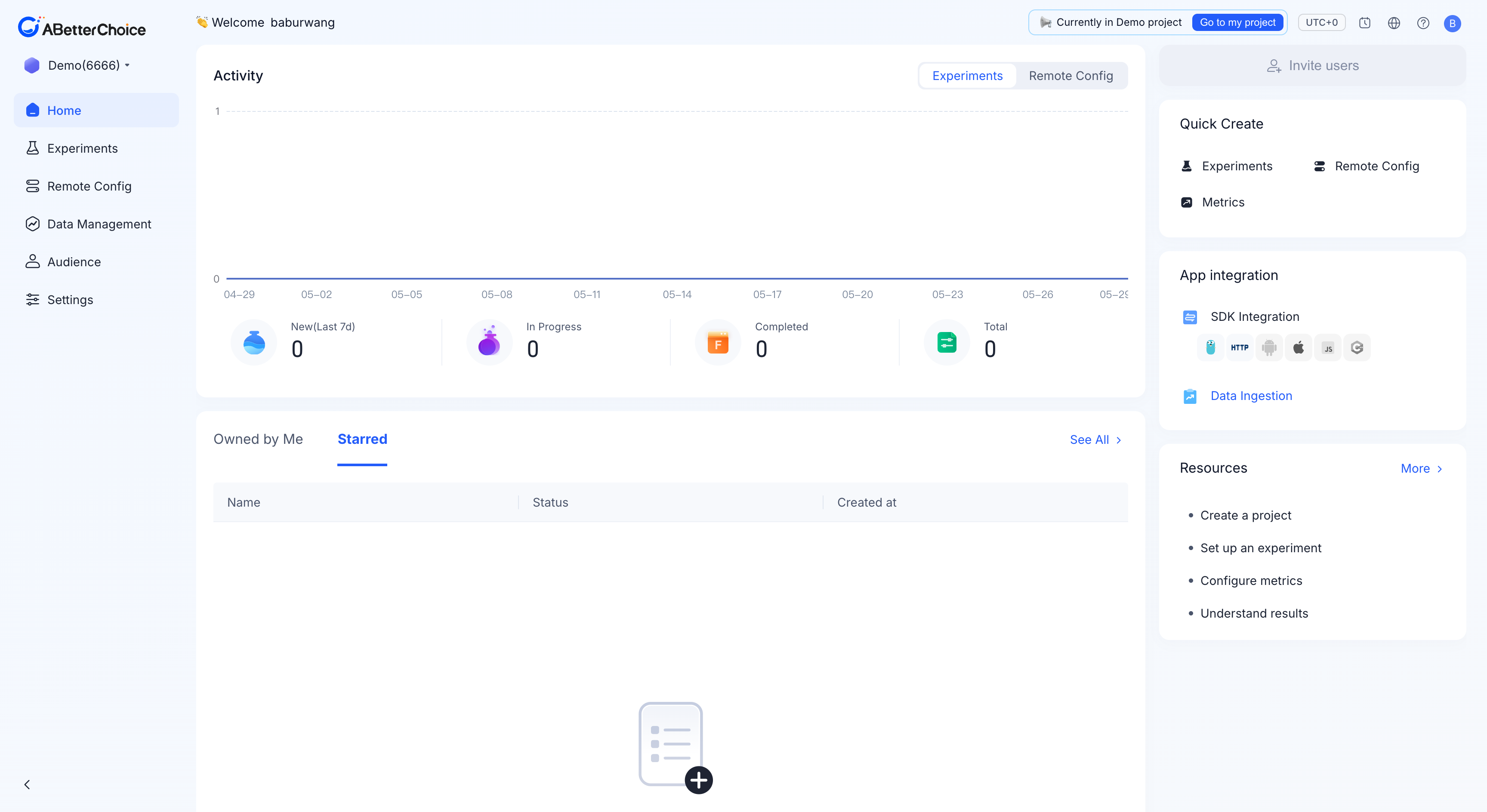
1. Get the project ID and an API key
Open Settings → SDK&Key in the left sidebar. The page lists:
- SDK setup — a card grid that shows which SDKs are available for the project.
goandhttpare ready today;Android,iOS,JavaScript, andC++are taggedComing soon. - API keys — every project ships with a default key named
{projectId}_default_{suffix}(for example6666_default_193444) that isActivefrom day one. You can use that key for the Quickstart, or click + New API Key to create a dedicated one. Keys are restricted to letters, numbers, and underscores.
Copy the project ID (the number in the URL after /app/) and the token. The full API-key reference lives in API keys.
2. Initialize the SDK or sign an HTTP request
Pick the snippet that matches your runtime. Today there are two ready-to-ship paths: the Go server SDK and the HTTP API. The C++ server SDK and the three client SDKs are listed as Coming soon under Settings → SDK&Key; reach out to support if you need early access.
Go server SDK
go get github.com/abetterchoice/go-sdkpackage main
import (
"context"
abc "github.com/abetterchoice/go-sdk"
)
func main() {
defer abc.Release()
abc.Init(
context.Background(),
[]string{"6666"}, // project ID
abc.WithSecretKey("YOUR_API_TOKEN"), // token from Settings → SDK&Key
)
}HTTP API
ak="your_secret_key_name"
token="your_api_token"
et=$(date +%s)
sig=$(echo -n "${token}${ak}${et}" | md5)

curl -X POST 'https://openapi.abetterchoice.ai/abc/get_experiments' \
  -H "Content-Type: application/json" \
  -H "X-Ak: $ak" -H "X-Et: $et" -H "X-Es: $sig" \
  -d '{"project_id":"6666","unit_id":"user_id_1"}'
The signature scheme and the full request reference live in HTTP API authentication and HTTP API endpoints.
3. Fetch an assignment and log one exposure
Use the unit ID that identifies the user (a stable user ID, session ID, or device ID). The platform always assigns the same unit ID to the same group.
// Go
ctx := abc.NewUserContext("user_id_1")
exp, err := ctx.GetExperiment(context.Background(), "6666", "abc_layer_name")
if err == nil {
    show := exp.GetBoolWithDefault("should_show_banner", false)
    abc.LogExperimentExposure(context.Background(), "6666", exp)
    _ = show
}
For the HTTP shape, the response carries the chosen group and parameters:
{
  "ret_code": 100,
  "exp_data": {
    "abc_layer_name": {
      "experiment_key": "experiment_for_button",
      "group_id": 8942824,
      "group_key": "Treatment_A",
      "params": { "color": "blue", "size": "20" }
    }
  }
}
A returned group_id other than -1 confirms a successful assignment, and the SDK or platform has recorded an exposure on this experiment.
Next steps
- SDK initialization — required fields and lifecycle.
- User object — stable IDs and attributes.
- Exposure logging — when to log manually, when to let the SDK do it.
- Default values & fallback — what your code does when the network is unavailable.
- API keys — rotate the token when you go to production.