

API Keys
API keys authenticate every request from a Server SDK or the HTTP API. Keys are scoped to a single project — losing or rotating a key only affects the project that owns it.
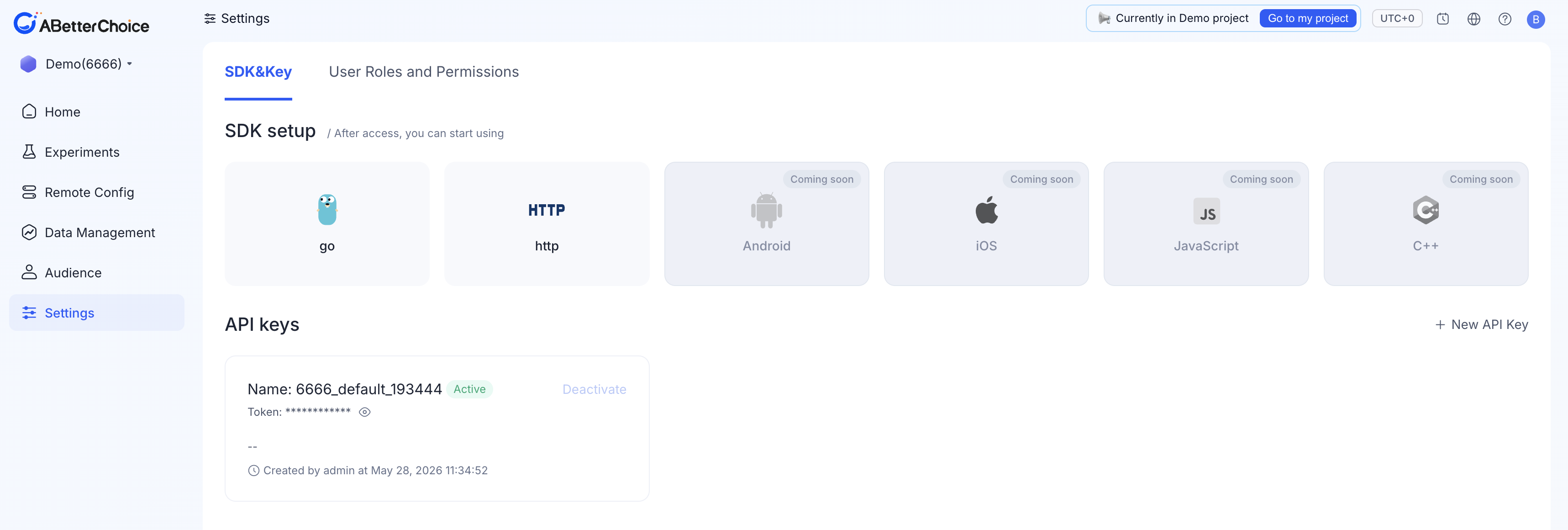
Where keys live
Open Settings → SDK&Key in the left sidebar. The page has two sections:
- SDK setup — a card grid that shows which SDKs are available for this project.
goandhttpare ready today;Android,iOS,JavaScript, andC++are taggedComing soon. The cards are informational — clicking one does not navigate anywhere. - API keys — the full list of keys that this project can use to authenticate.
When a project is created, the platform issues a default key named with the pattern {projectId}_default_{suffix} — for example 6666_default_193444 in project 6666. The default key is Active from day one and cannot be deactivated — the Deactivate button on its row is disabled.
Each row in the API keys list shows:
| Field | Notes |
|---|---|
Name | Human-readable label. See the naming rule below. |
Status | Active keys can serve traffic; Deactivated keys are immediately rejected. |
Token | The secret value used by SDK / HTTP clients. Masked by default. |
| Description | Optional free-text note that describes who uses the key. |
Created by | The member who created the key, plus the creation timestamp. |
Create a key
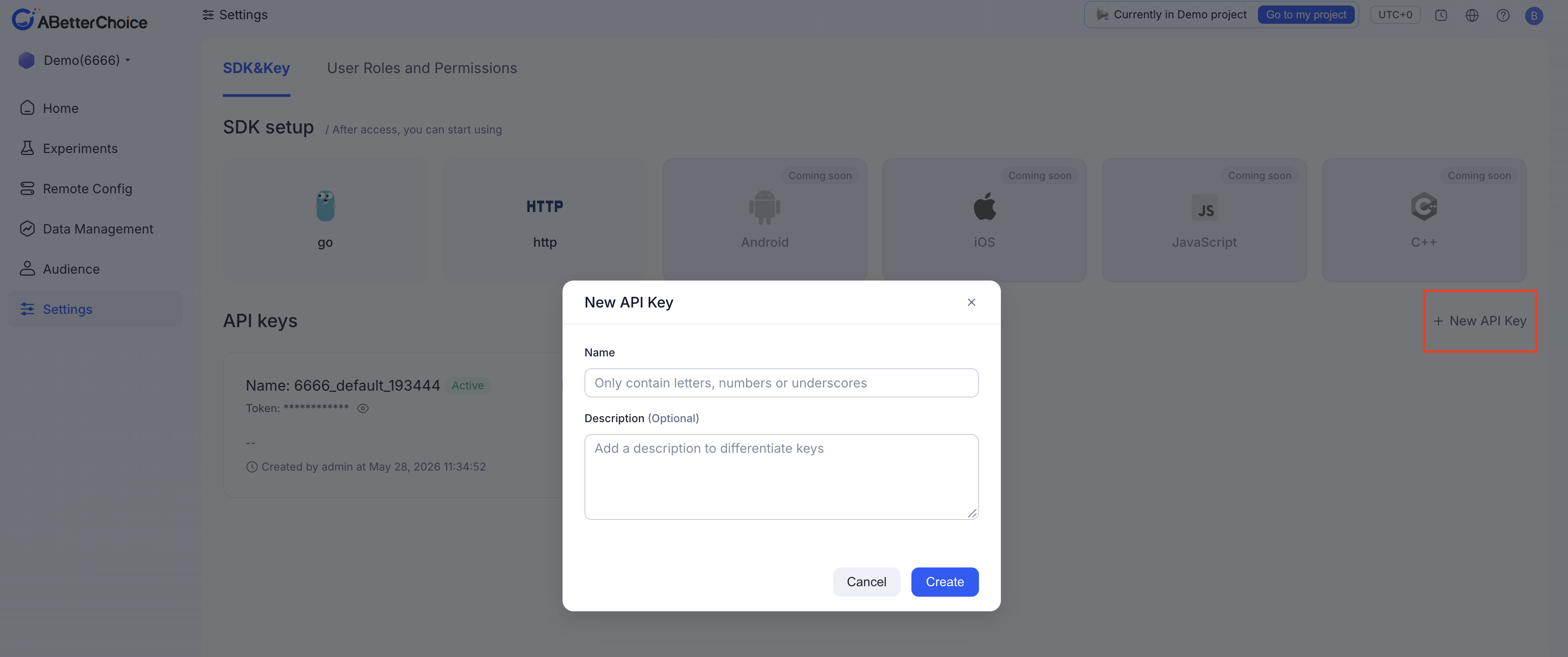
- Open Settings → SDK&Key.
- Click + New API Key in the upper-right of the API keys table.
- Fill in the dialog:
- Name — required. The platform restricts the name to letters, numbers, and underscores (
_); hyphens, dots, and spaces are not accepted. Pick something that maps to the consumer, e.g.ios_prod,server_prod, orhttp_batch. - Description — optional. A short note that explains who uses this key.
- Name — required. The platform restricts the name to letters, numbers, and underscores (
- Click Create. The key appears in the list with status
Activeand is ready to use.
Never commit a token into source control. Pair every key with a secret manager (Vault, AWS Secrets Manager, Tencent Cloud SSM, etc.) and rotate it on a schedule.
Deactivate or rotate a key
Deactivate takes effect immediately — once you click it, every request that still uses that token is rejected. Always roll out the new key first, then deactivate the old one:
- In Settings → SDK&Key, click + New API Key and create the replacement key.
- Distribute the new token to your fleet (secret manager, environment variables, deployment config) and let it run alongside the old one until traffic is healthy.
- Return to Settings → SDK&Key and click Deactivate on the row for the old key.
- Confirm in your service logs that requests using the old token have stopped, then archive the token in your records.
The default key (the {projectId}_default_{suffix} row) cannot be deactivated. If you suspect it has leaked, treat it as compromised, create a new key for production traffic, and reach out to support to rotate the default token.
Choosing the right key for an integration
Use one key per environment and per consumer so you can deactivate exactly what you need without disrupting the rest of the fleet. A typical layout:
server_prod— Go server in production.server_staging— the same servers in staging.http_batch— ad-hoc HTTP clients (CI jobs, scripts, BI tools).
When client SDKs (Android, iOS, JavaScript) become available, treat the keys you ship into browsers and mobile apps as public: do not reuse them on the server side, and create dedicated keys for each platform. The C++ server SDK is also tagged Coming soon today; until it ships, C++ runtimes can call the platform via the HTTP API with a server-scoped key.